Database MFA and Agent Setup
Once the organization and tenant have been created, log in to the tenant URL to configure MFA, install the database agent, and discover your databases.
Database MFA Configuration
Step 1: Set MFA Mode to Database
After logging in to the platform, set your MFA mode to Database.
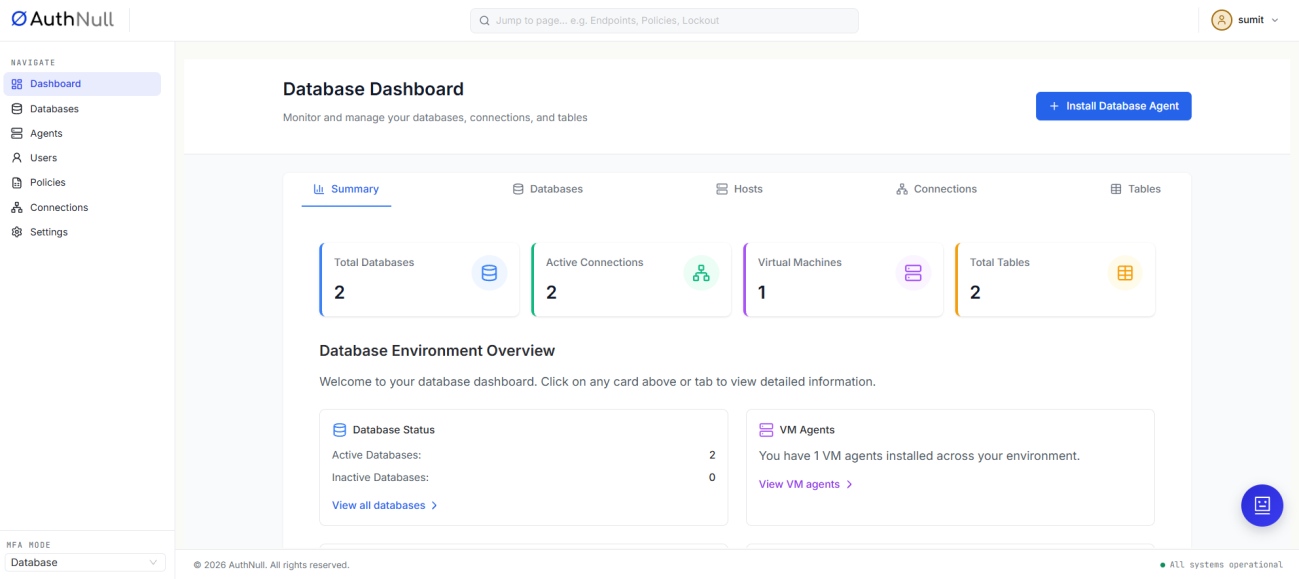
Database Dashboard with MFA mode set to Database
Step 2: Configure Tenant Connection Mode
Go to Settings → Tenant Configuration → Connection and select how you want to connect: Direct, or Direct + Authnull Proxy.
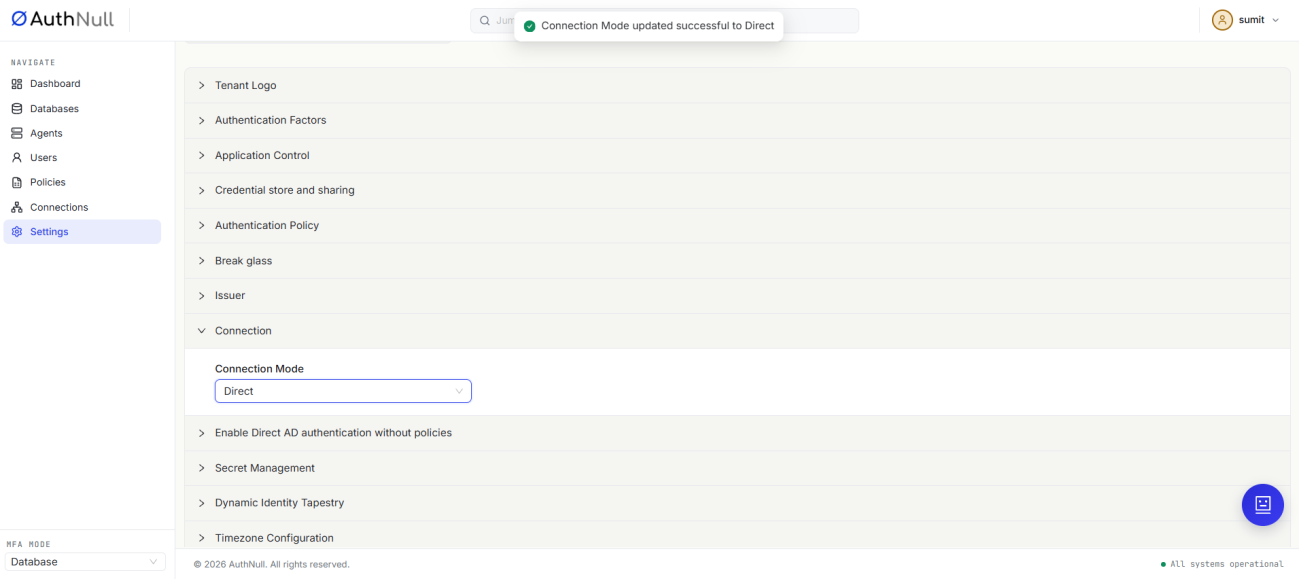
Tenant connection mode configuration
Database Agent Setup
Step 3: Install the Database Agent
From the dashboard, click Install Database Agent and follow the on-screen steps to complete the installation.
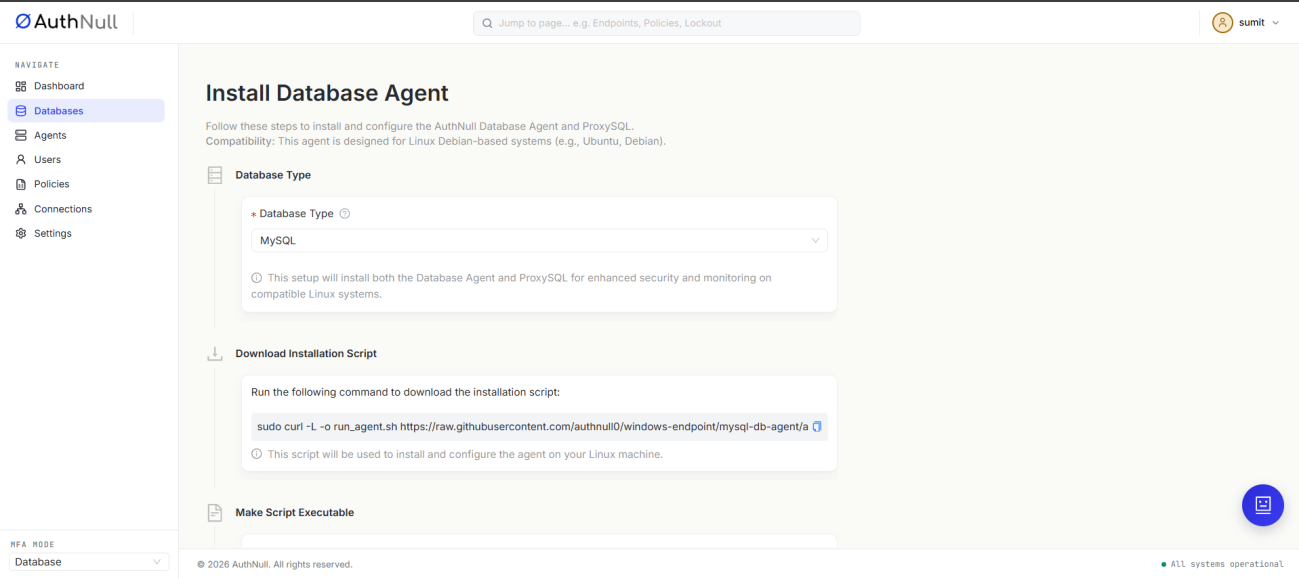
Install Database Agent screen
Step 4: Verify Agent Discovery
Once installation completes, the database agent will automatically populate on the Agents screen.
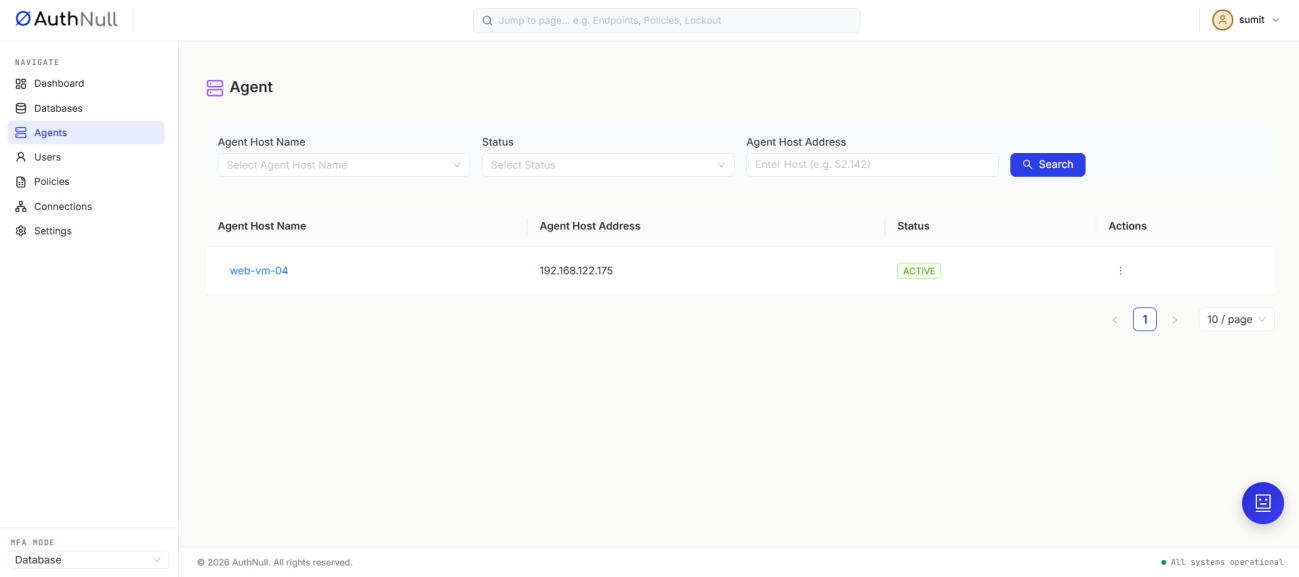
Agent discovery on the Agents screen
Step 5: Verify Database Discovery
The databases discovered by the agent will automatically populate on the Databases screen.
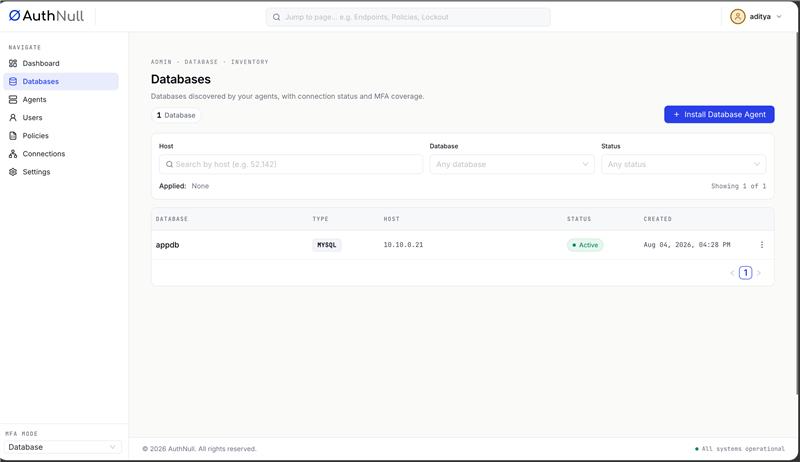
Databases discovered by the agent, with connection status and MFA coverage
Next Steps
Continue to Wallet Users and Policies to provision users and issue database credentials.