Onboarding Linux Endpoint
Follow these steps to set up the AuthNull agent and configure PAM authentication on your Linux machine.
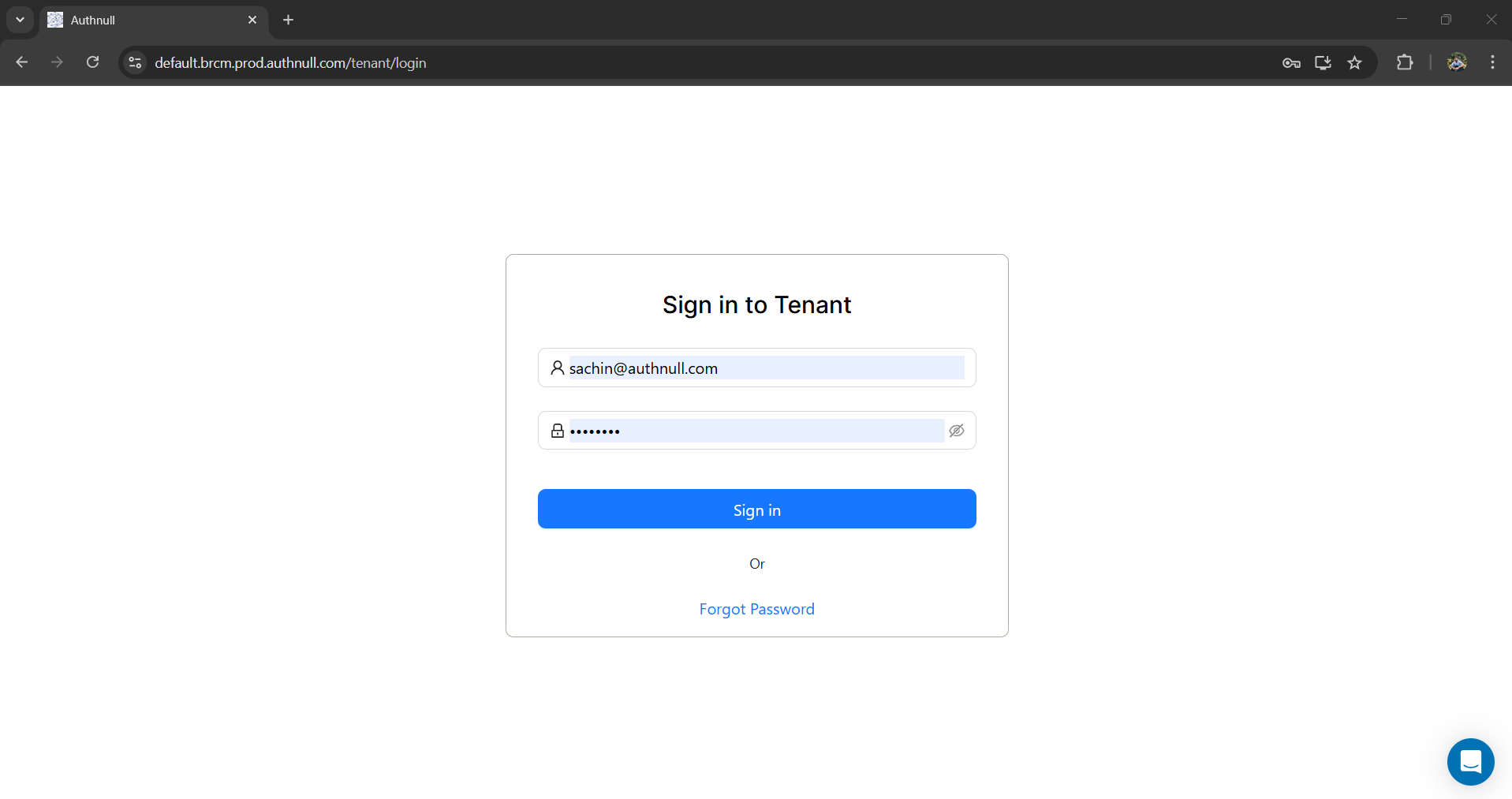
Step 1: Login to your tenant admin console
Enter your login details to access the platform.
Step 2: Navigate to Endpoints
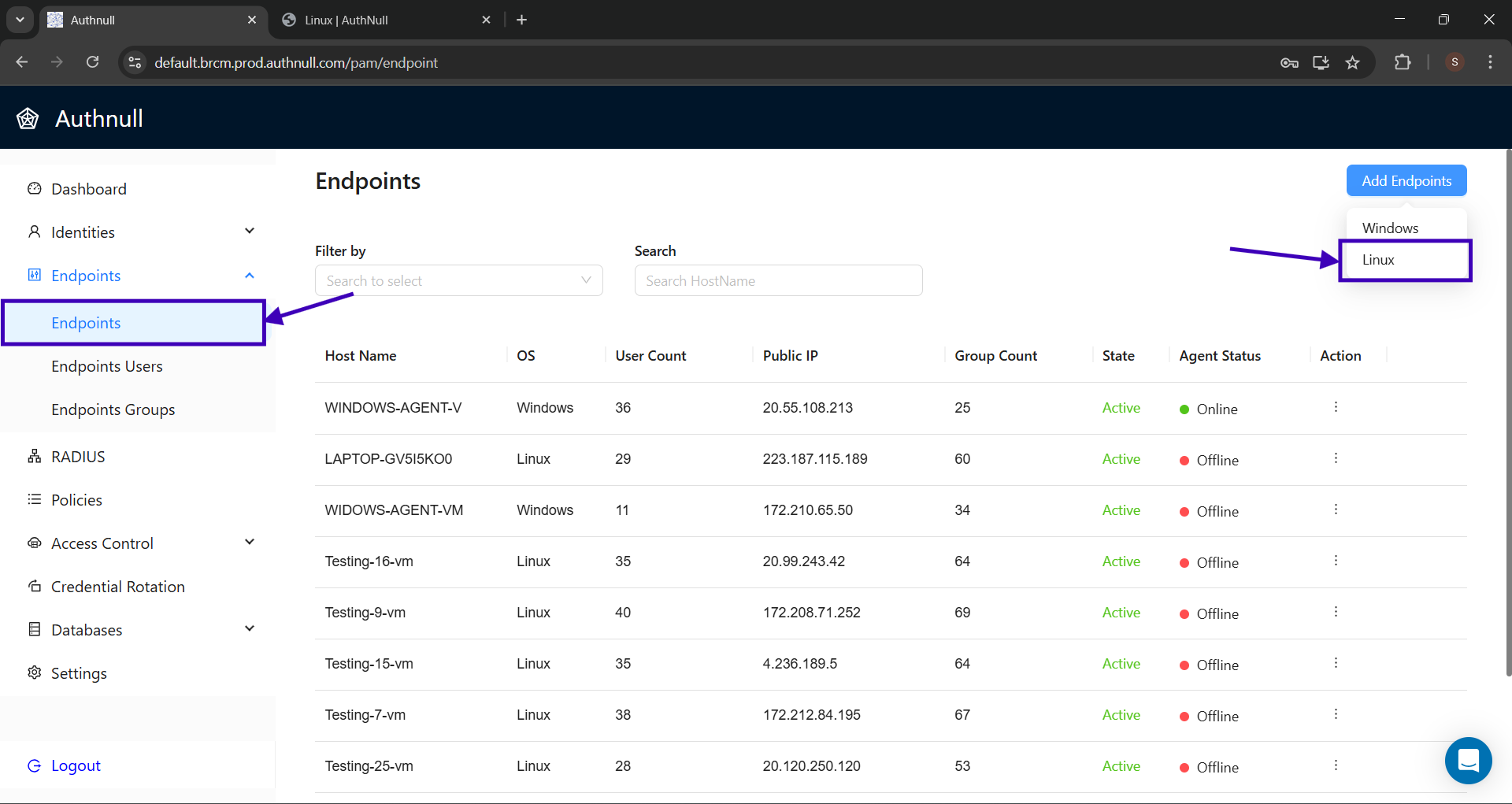
Navigate to the Endpoints under the Endpoints menu from the sidebar and click the Linux option from the Add Endpoint button in the top right corner.
Part 1: Agent Onboarding
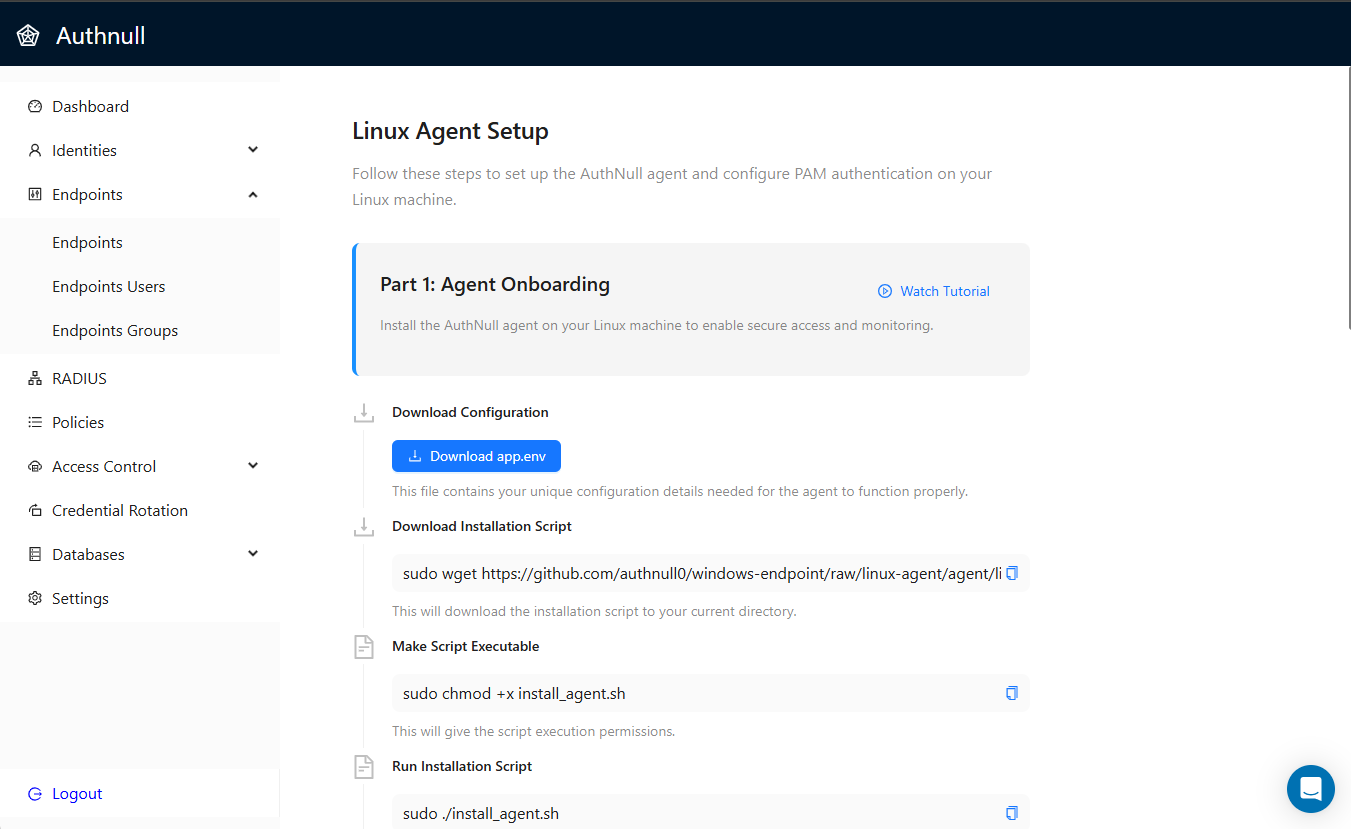
Install the AuthNull agent on your Linux machine to enable secure access and monitoring.
Step 1: Download Installation Script
sudo wget https://github.com/authnull0/windows-endpoint/raw/linux-agent/agent/linux-agent/install_agent.sh -O install_agent.sh
This will download the installation script to your current directory.
Step 2: Make Script Executable
sudo chmod +x install_agent.sh
This will give the script execution permissions.
Step 3: Run Installation Script
sudo ./install_agent.sh
This will install the AuthNull agent on your system.
Step 4: Download Configuration
This file contains your unique configuration details needed for the agent to function properly.
Step 4: Verify Installation
tail -f /var/log/authnull-agent.log
Check the logs to ensure the agent is running properly. You should see a message indicating the token is valid.
Part 2: PAM Module Configuration
Configure the PAM module to enable secure authentication for SSH access.
Step 1: Download & Extract the TAR file
>> sudo wget -O pam_authnull.tar https://github.com/authnull0/windows-endpoint/raw/refs/heads/main/pam_authnull.tar

>> sudo tar -xvf pam_authnull.tar

>> cd pam
Login to the machine and download the TAR file. Extract it and navigate to the pam directory.
Step 2: Run Configure Script
>> sudo chmod +x configure

>> sudo ./configure
Enter the ORG_ID and TENANT_ID when prompted.
Make the configure script executable and run it to update SSH and PAM settings.
Step 3: Install the PAM Module
sudo make
Install the PAM module using the make command.
Step 4: Uninstallation (Optional)
sudo make uninstall
To uninstall the PAM module, run this command.
Step 5: Test the Setup
- Open a terminal on your local machine
- Connect to the VM using SSH
- You should see the AuthNull authentication prompt
- Complete the authentication to gain access
If you see the authentication prompt and can successfully authenticate, your PAM module is configured correctly.
Step 6: Monitor SSH Logs
tail -f /var/log/auth.log
Check the SSH logs for troubleshooting and to monitor authentication attempts.