Using the App
Approving a Request
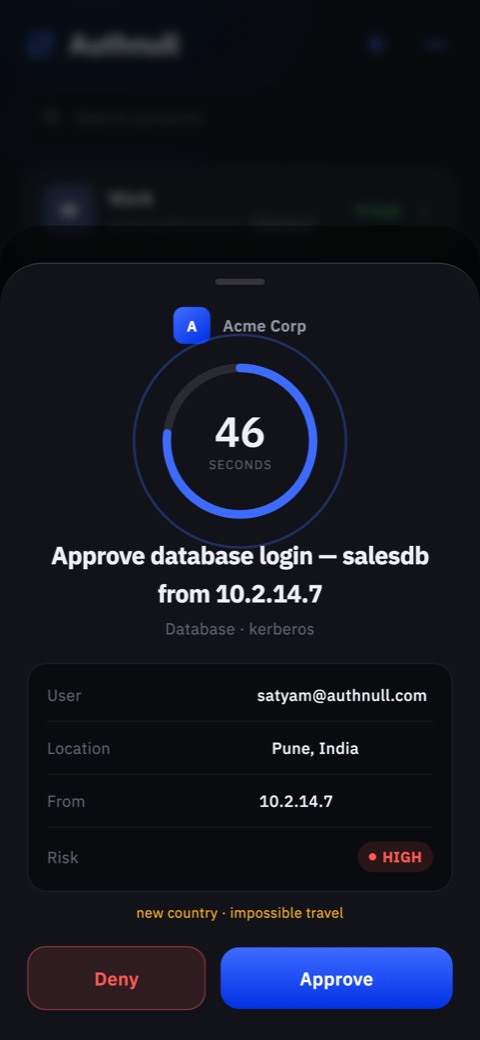
When a sign-in needs MFA, a request arrives on your device. It shows who is signing in, the system they are signing in to, where the request came from and how long you have to answer.
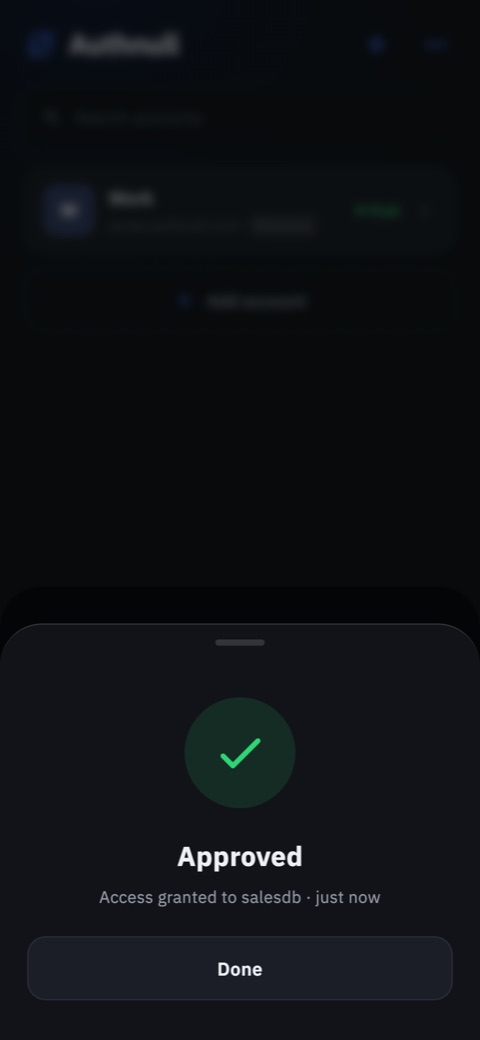
- Approve if the request matches what you are doing. Some approvals ask for your fingerprint, face or device PIN first.
- Deny any request you did not start.
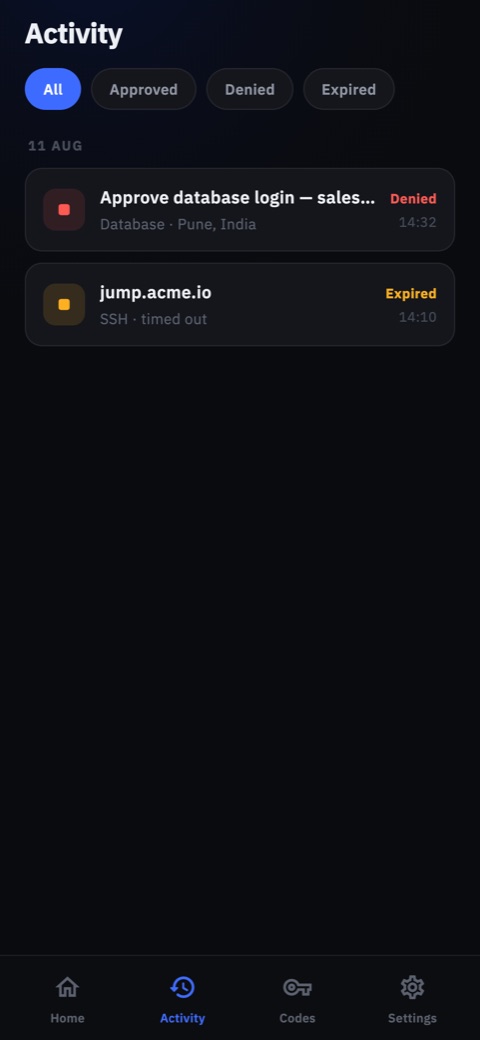
Every request is listed under Activity in the app, with approved, denied and expired requests. See Authenticating with Push MFA.
One-Time Codes
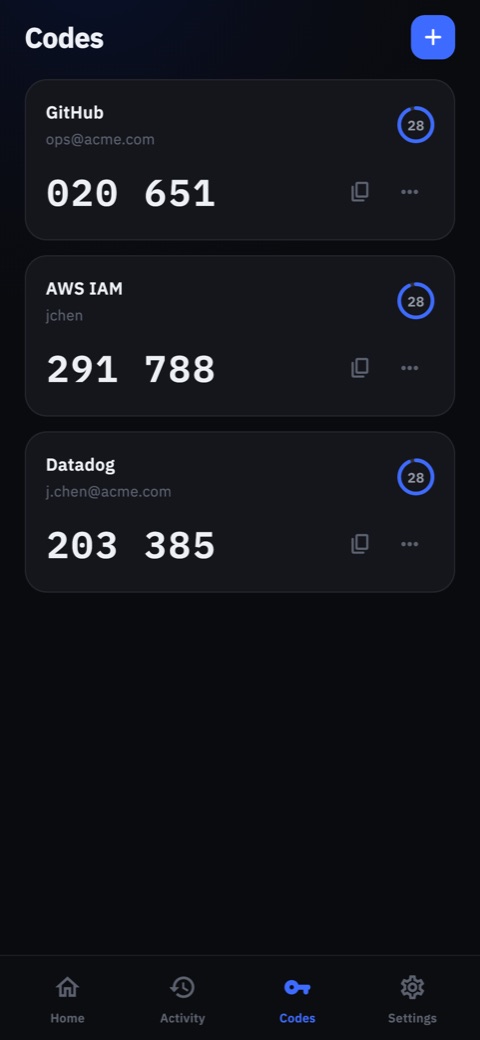
The app also keeps time-based one-time codes (TOTP) for other accounts, such as GitHub or AWS. Open Codes and scan the account's setup QR code, or enter its details manually. These codes are separate from your organization's push requests.
New or Lost Phone
- New phone - add your account on the new phone (see User Setup), then remove the old one in the app under Settings → Devices.
- Lost phone - remove it from Settings → Devices on another enrolled device. If you have no other device, ask your administrator to send a new invite with Register device.