User Setup
- Install the app from the download links.
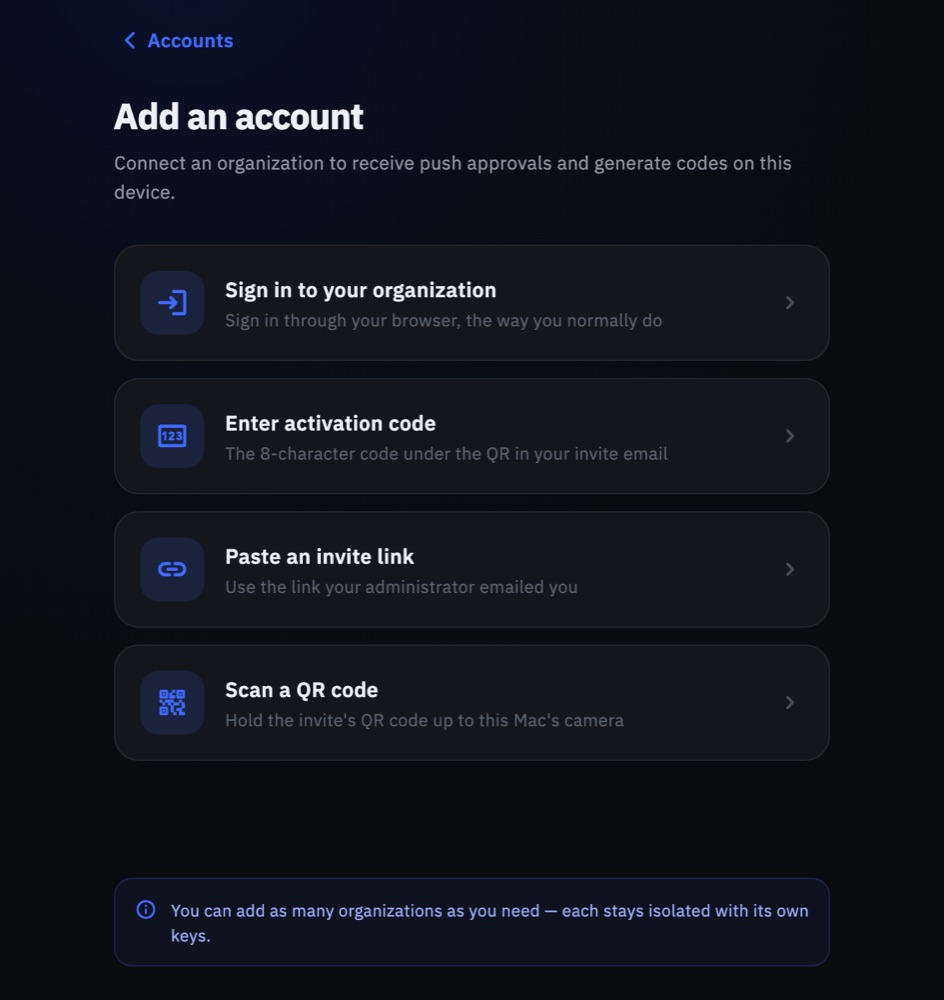
- Add your organization in one of these ways:
- Scan the QR code in your invite email or the one your administrator shows you.
- Open the invite link on the device you are setting up.
- Choose Add account → Enter activation code and type the code from your invite.
- Choose Add account → Sign in to your organization and enter your organization's AuthNull address.
- Allow notifications so push requests reach you.
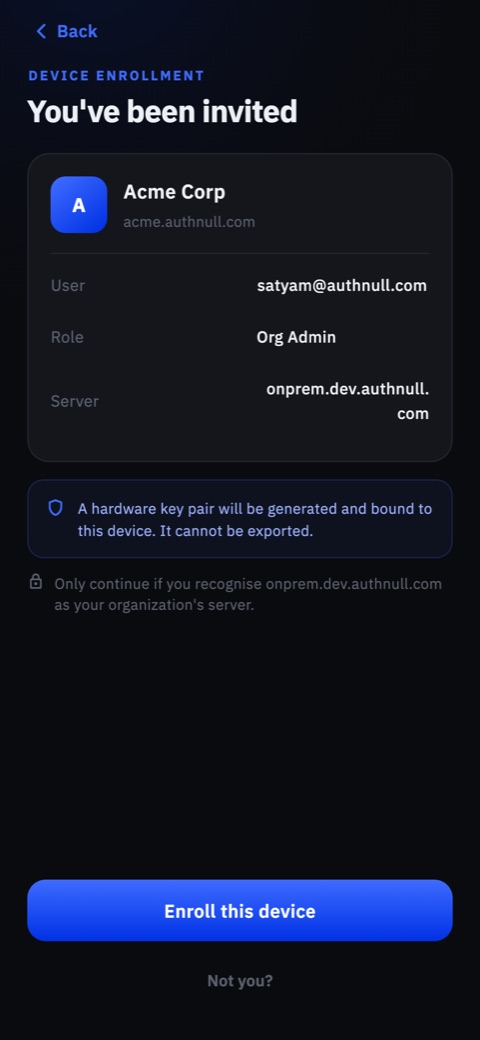
The app shows your organization, account and server before anything is enrolled. Continue only if you recognise them.
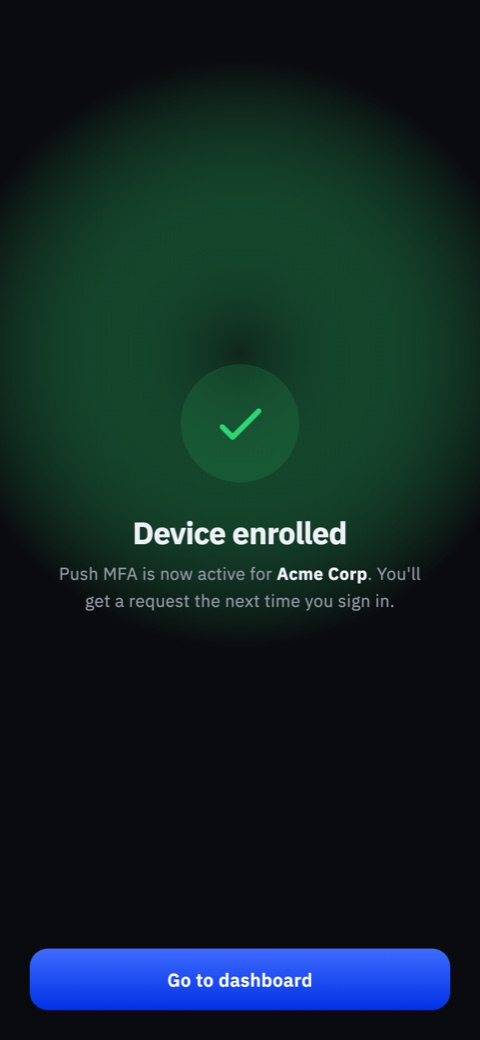
You can add the same account to several phones. Pushes go to every enrolled device, and the first answer wins.
tip
No invite yet? Ask your administrator to send one. See Admin Setup.
Next: Using the App.